How to Make AI Art Look Like Movie Lighting (Easy Guide)
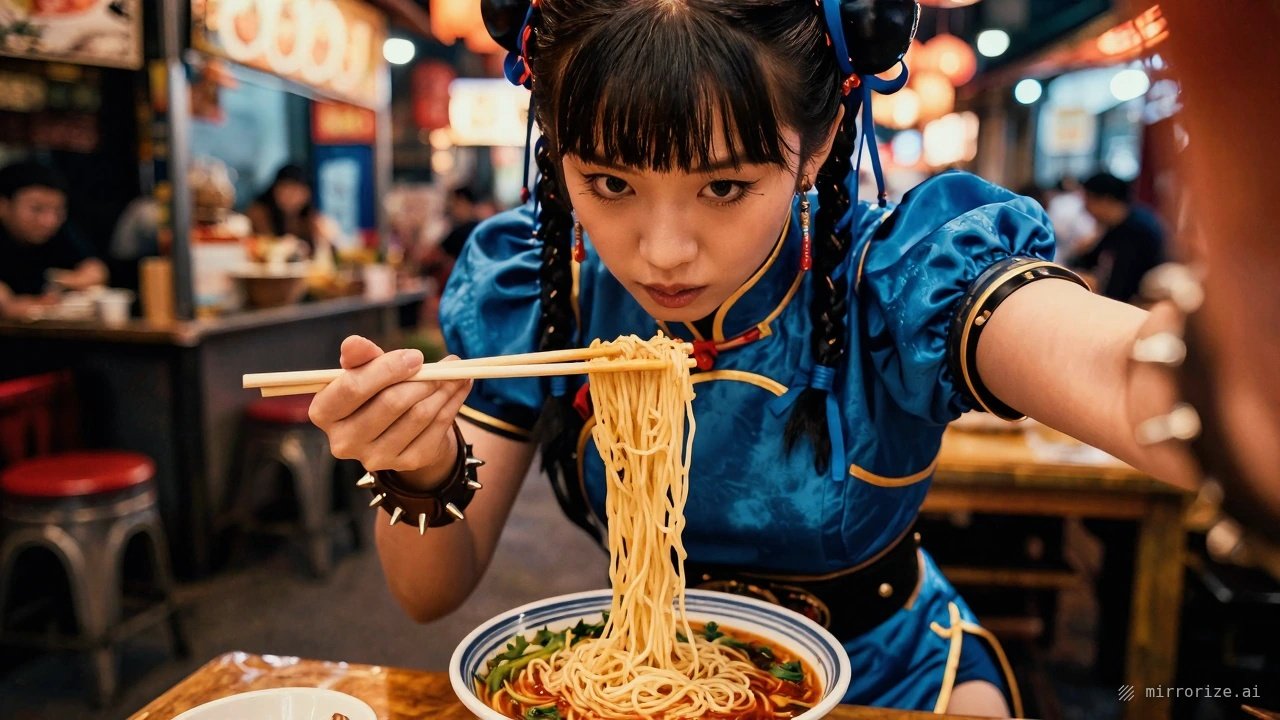
Why Movie Lighting Matters in AI Art
The difference between a snapshot and a frame from Blade Runner 2049 isn't the subject — it's the light. Cinematographers spend years learning how shadows fall, where highlights land, and what color does to mood. AI image generators can replicate these techniques instantly, but only if you know how to ask.
Most AI art looks flat because people describe what's in the scene but forget to describe how it's lit. This guide covers the specific techniques that make AI-generated images look like they were pulled from an actual film set.
The Basic Formula: Direction + Quality + Color
Every cinematic lighting setup comes down to three elements:
Direction — where the light comes from (side, back, above, below)
Quality — how hard or soft the light is (sharp shadows vs. gentle gradients)
Color temperature — warm tungsten glow vs. cold blue moonlight
Add these to your prompts before describing the subject. Mirrorize generators process information in order, so front-loading lighting terms gives them priority.
Example prompt structure:
[lighting direction], [lighting quality], [color tone] — [your subject]
Real example:
single backlight, hard shadows, warm amber tones — detective in rain-soaked alley
Direction: Where Your Light Comes From
Different angles create different moods. Here's what actually works in AI generation:
Backlight / rim light — light from behind the subject, creates glowing edges and silhouettes. Search terms that work: "backlit," "rim lighting," "silhouette lighting."
Side light — reveals texture and depth. Half the face in shadow, half illuminated. Use: "split lighting," "side lighting," "chiaroscuro."
Top light — dramatic overhead illumination, shadows under eyes and nose. Try: "overhead lighting," "top-down light," "harsh ceiling light."
Bottom light — horror movie classic, unnatural and unsettling. Use: "underlighting," "uplight," "light from below."
Three-point lighting — the classic Hollywood setup (key light, fill light, back light). Just use: "three-point lighting" or "studio lighting."
On Mirrorize, the Proximity generator handles directional lighting exceptionally well — it was trained on cinematic imagery and understands these terms naturally. For more stylized interpretations, try stacking the Cinematic or Film Noir styles with generators like Stellar or Gravitron.
Quality: Hard vs. Soft Light
Hard light = sharp shadows, high contrast, defined edges
Soft light = gradual transitions, gentle shadows, diffused glow
For hard, dramatic lighting:
- "hard light," "sharp shadows," "high contrast"
- "single light source," "focused beam"
- "direct sunlight," "spotlight"
For soft, diffused lighting:
- "soft light," "diffused lighting," "gentle shadows"
- "overcast," "window light," "ambient lighting"
- "bounced light," "fill light"
The difference is massive. Compare:
hard spotlight, deep shadows — jazz singer on stage
vs.
soft window light, gentle shadows — jazz singer on stage
Same subject. Completely different mood.
Color Temperature: The Secret Weapon
Color transforms everything. Warm tones (orange, amber, gold) feel intimate and nostalgic. Cool tones (blue, teal, cyan) feel modern, detached, or otherworldly.
Warm cinematic palettes:
- "warm tungsten light," "golden hour," "amber tones"
- "candlelight," "firelight," "orange glow"
- "sodium vapor" (that classic streetlight orange)
Cool cinematic palettes:
- "cool blue light," "moonlight," "cyan tones"
- "fluorescent," "cold white light," "teal and orange"
- "neon lighting" (pairs well with urban scenes)
Split temperature (warm + cool in the same image):
- "warm interior light, cool exterior light"
- "orange streetlight, blue fog"
- "teal and orange color grading"
That last one — teal and orange — is Hollywood's most overused color combo for a reason. It works. Every blockbuster uses it. Try it on Mirrorize by pairing those color terms with the Film & Vintage style category or the Cinematic style.
Specific Lighting Setups That Work
These are proven combinations that consistently produce film-quality results:
Film noir detective:
single venetian blind shadows, hard side light, high contrast black and white — detective at desk
Use with: Proximity, add Film Noir style
Cyberpunk street scene:
neon underlighting, wet pavement reflections, teal and magenta — figure walking through rain
Use with: Stellar or Gravitron, add Neon or Cyberpunk style
Golden hour portrait:
backlit golden hour sun, lens flare, warm amber tones — woman in wheat field
Use with: Radiant or Dreamworld, add Golden Hour or Lens Flare styles
Horror atmosphere:
single overhead light, hard shadows on face, cold fluorescent tone — person in empty hallway
Use with: DarkMirror, add Horror or Abandoned styles
Blade Runner aesthetic:
atmospheric volumetric fog, orange and teal color grading, backlit smoke — city at night
Use with: Exodus or Proximity, add Cinematic + Volumetric styles
The Styles Stack Strategy
Mirrorize's style system is built for this. Stack up to three styles to nail specific looks:
For classic Hollywood lighting:
Film Noir + Cinematic + High Contrast
For modern blockbuster look:
Cinematic + Volumetric + Color Grading
For moody dramatic scenes:
Chiaroscuro + Dramatic + Low Key
For warm nostalgia:
Golden Hour + Film Grain + Warm Tones
Find these in the Mood & Theme, Film & Vintage, and Effects categories. The system is intelligent — it positions style instructions in the right order automatically, so your lighting direction stays up front.
Generator Choice Matters
Different Mirrorize generators interpret lighting differently:
Proximity (MV2) — best for intimate, naturally lit scenes. Understands subtle lighting cues.
Stellar (MV4) — handles dramatic contrast and sci-fi lighting well. Great for neon and volumetric effects.
Gravitron (MV4) — strong with architectural lighting, good for interior scenes with multiple light sources.
DarkMirror (MV2) — specializes in moody, shadowy aesthetics. Perfect for horror and noir.
Exodus (MV3) — balanced between realism and style, handles complex lighting setups reliably.
For commercial projects requiring top-tier cinematic quality, the Flux 2 Pro generator (under Commercial) produces film-grade results but costs 10 credits per generation.
Common Mistakes to Avoid
❌ Describing lighting too late in the prompt — put lighting first
❌ Mixing too many light sources — "candlelight and neon and spotlight" creates mush
❌ Forgetting shadows — mention shadows explicitly to make them render
❌ Ignoring color temperature — it's 50% of the cinematic look
❌ Using generic terms — "good lighting" means nothing; be specific
Test and Iterate
Generate a base image, then use Mirrorize's Remix feature to adjust lighting terms while keeping the composition. Hover over any gallery image, click Edit, and tweak the prompt or styles.
Or try the Ideas from image feature — select an image, click it, and let the AI suggest video prompts. If your still image nails the lighting, animating it with PixVerse v6 (15-60 credits depending on duration) can produce film-quality clips.
Make It Move
Once you've dialed in your lighting, click the Animate button on any gallery image to jump straight to the Video tab. PixVerse v6 preserves lighting aesthetics surprisingly well, especially for slow camera moves and atmospheric scenes.
For quick tests, MVG (the budget video engine) works fine for simpler lighting setups. For anything you plan to use professionally, PixVerse v6 at 10 or 15 seconds delivers noticeably better quality.
Your Next Steps
Open mirrorize.ai, pick a generator (Proximity for natural scenes, Stellar for dramatic sci-fi), and test these lighting formulas. Start simple:
single backlight, hard shadows, warm amber — your subject here
Then stack one style (Cinematic, Film Noir, or Golden Hour). Generate. Adjust. Generate again.
The difference between AI art that looks like a screenshot and AI art that looks like cinema is lighting. Now you know how to ask for it.