Edit Your Images with Flux.2 Klein
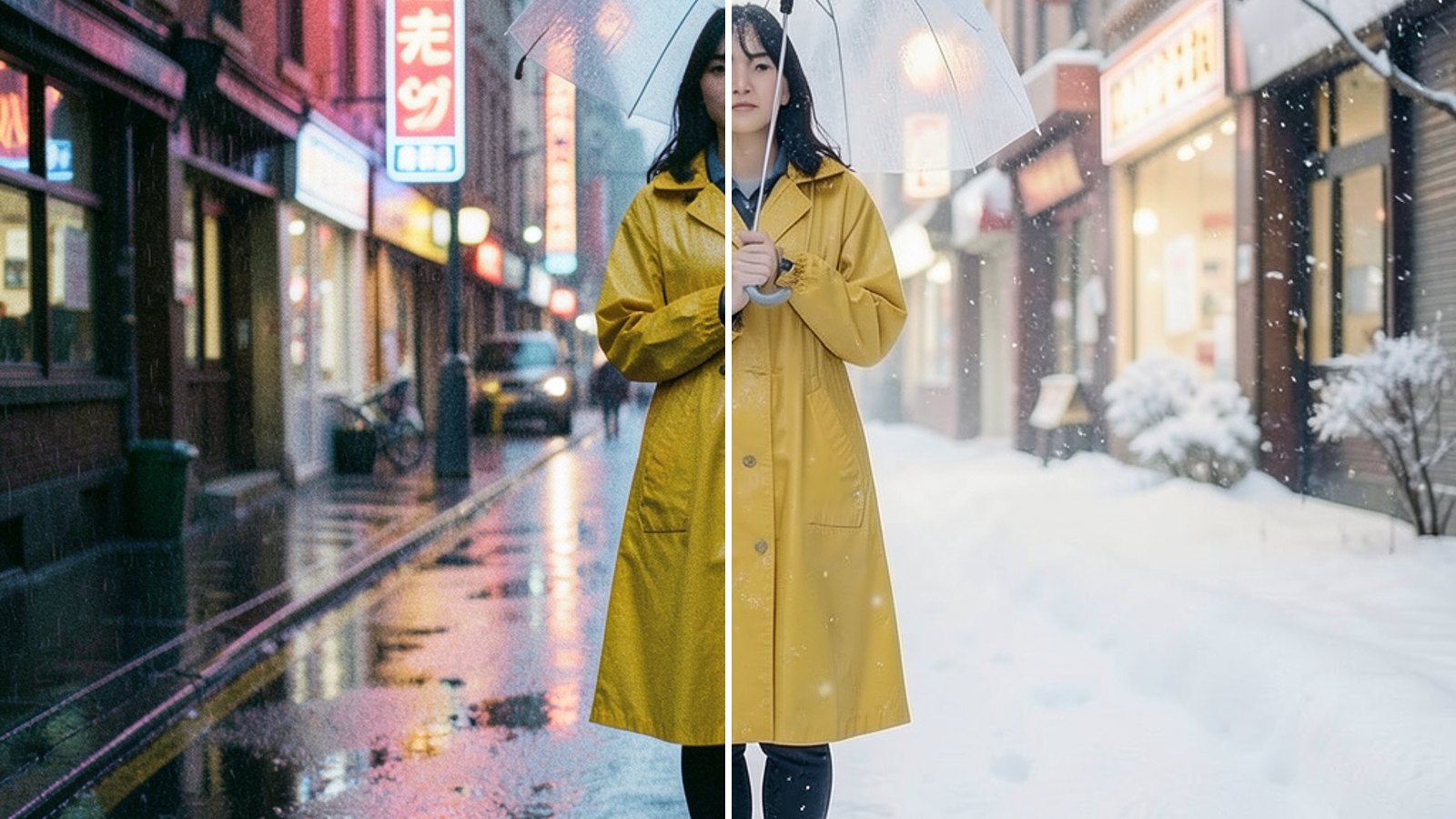
Mirrorize can now edit your images. Pick a picture, say what should change, and Flux.2 Klein hands back a new version in a few seconds — the same scene, the same subject, with only the part you asked for changed. You can also bring in up to two more images as references: a jacket, a pattern, a place.
Editing is a Pro feature and costs 1 credit per image. Klein also works as a plain text-to-image model for everyone, at the same price.
Start an edit
There are two ways in.
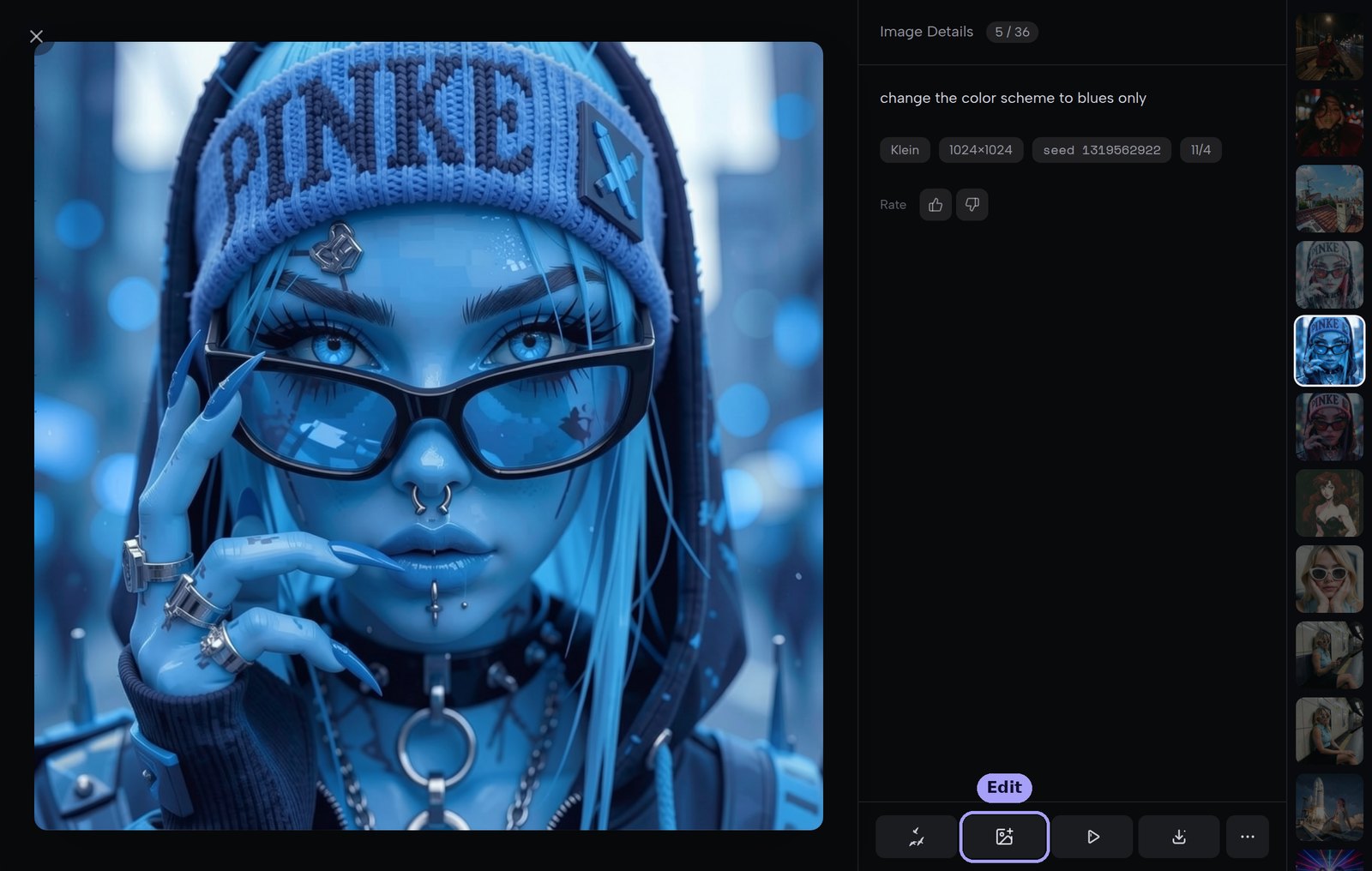
From any image you've made. Open it in Studio and press Edit in the bar under the details. Mirrorize switches to Flux.2 Klein with that picture attached, ready for your instruction.
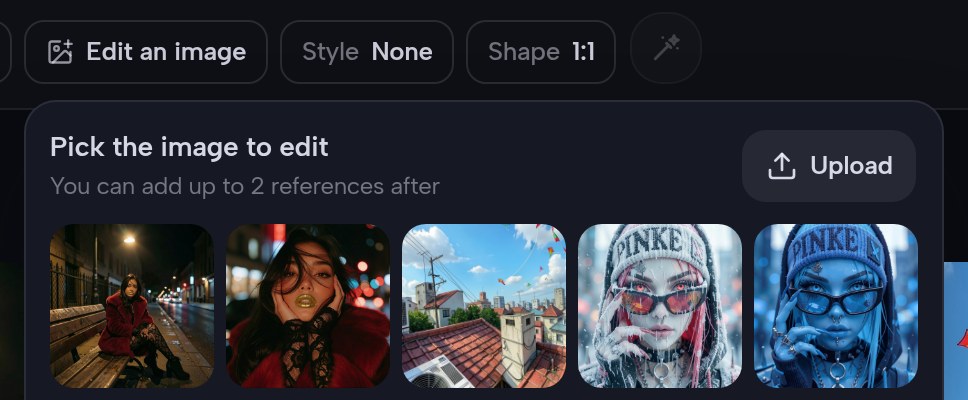
From the prompt bar. Choose Flux.2 Klein as your model and an Edit an image button appears next to it.
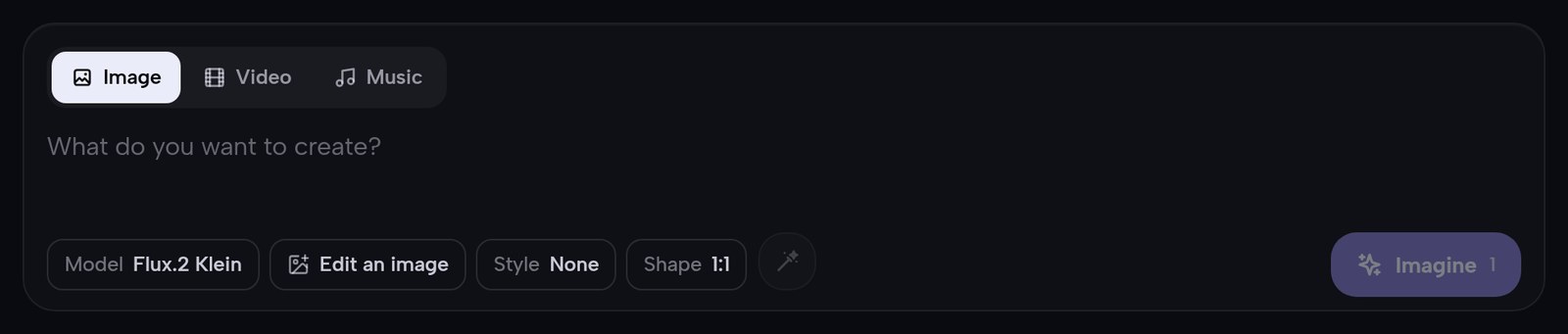
Press it to pick from your recent creations, or upload a picture from your device.
Say what should change
Write the change, not the whole picture. Klein already sees the image, so you only need the difference:
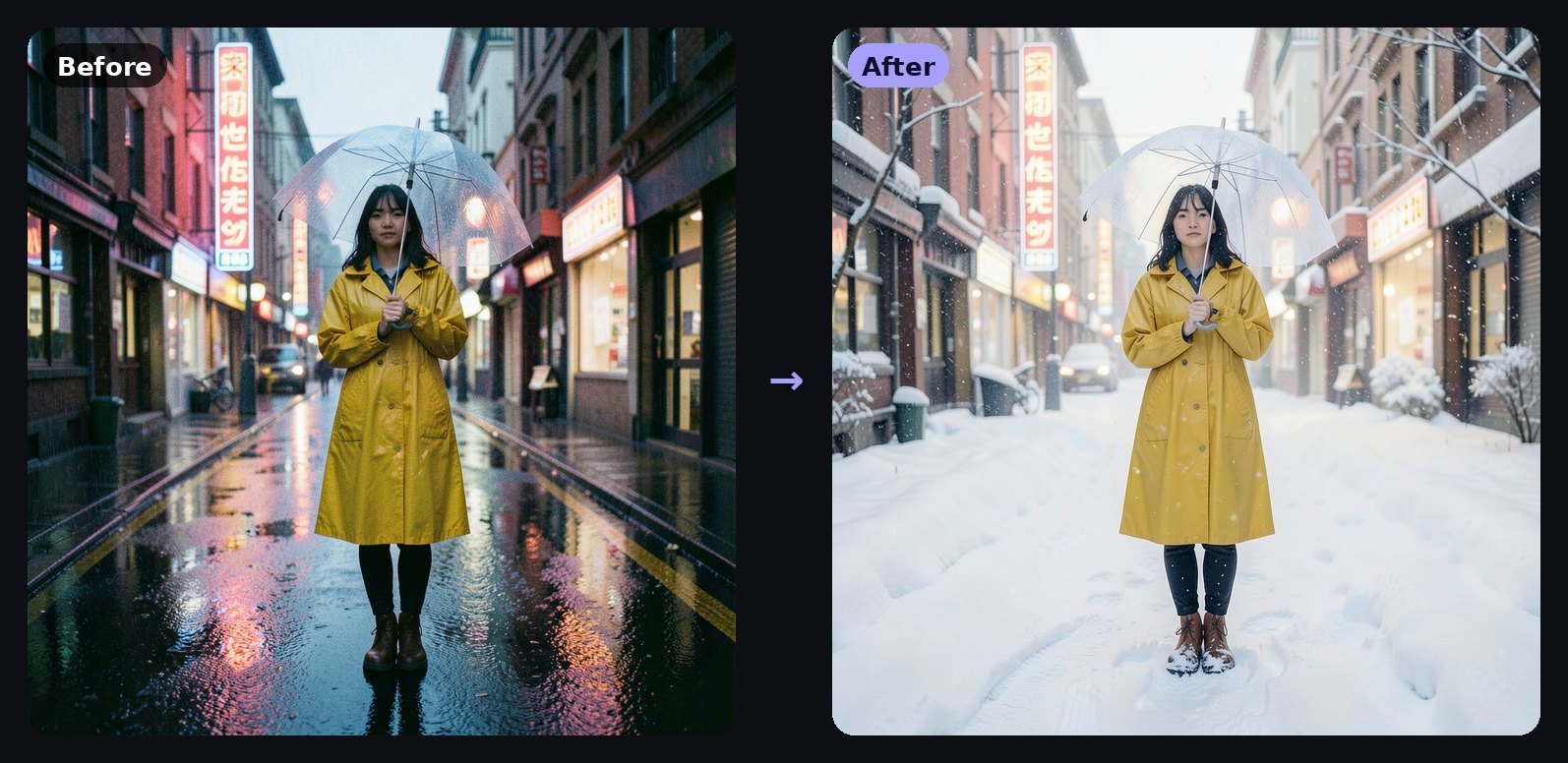
- make it a snowy winter morning
- change the color scheme to blues only
- give her a red scarf
- turn it into a watercolor painting
Everything you don't mention is kept as close to the original as possible: the pose, the framing, the light, the background.
Add references: image 2 and image 3
The first image is always the one being edited. Images 2 and 3 are references — things you want to bring into it. Each attached image shows a small number, and that's how you talk about it in the prompt.
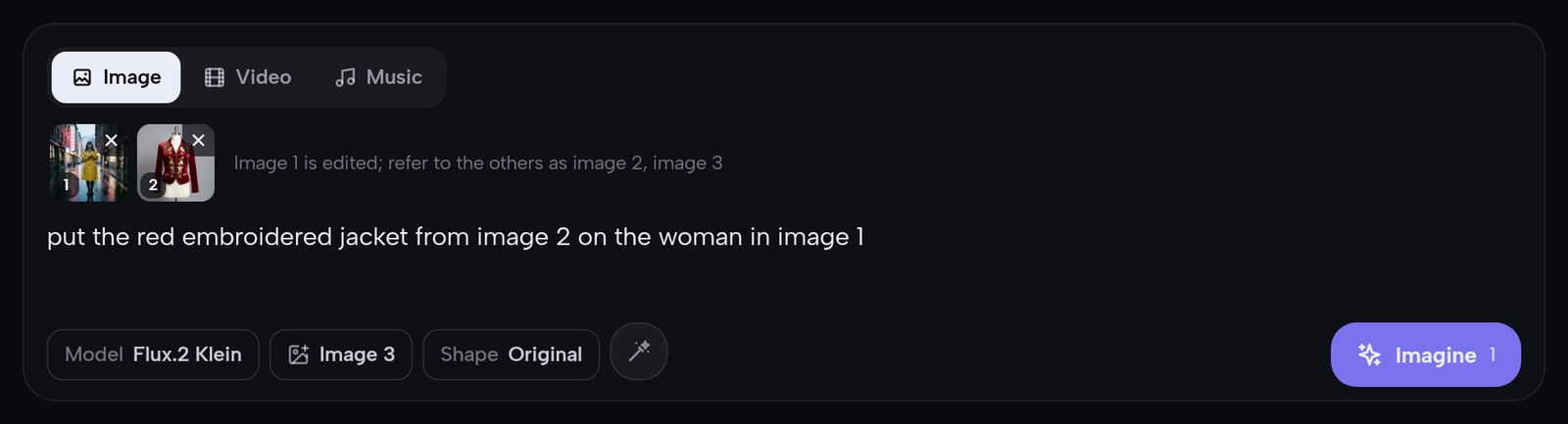
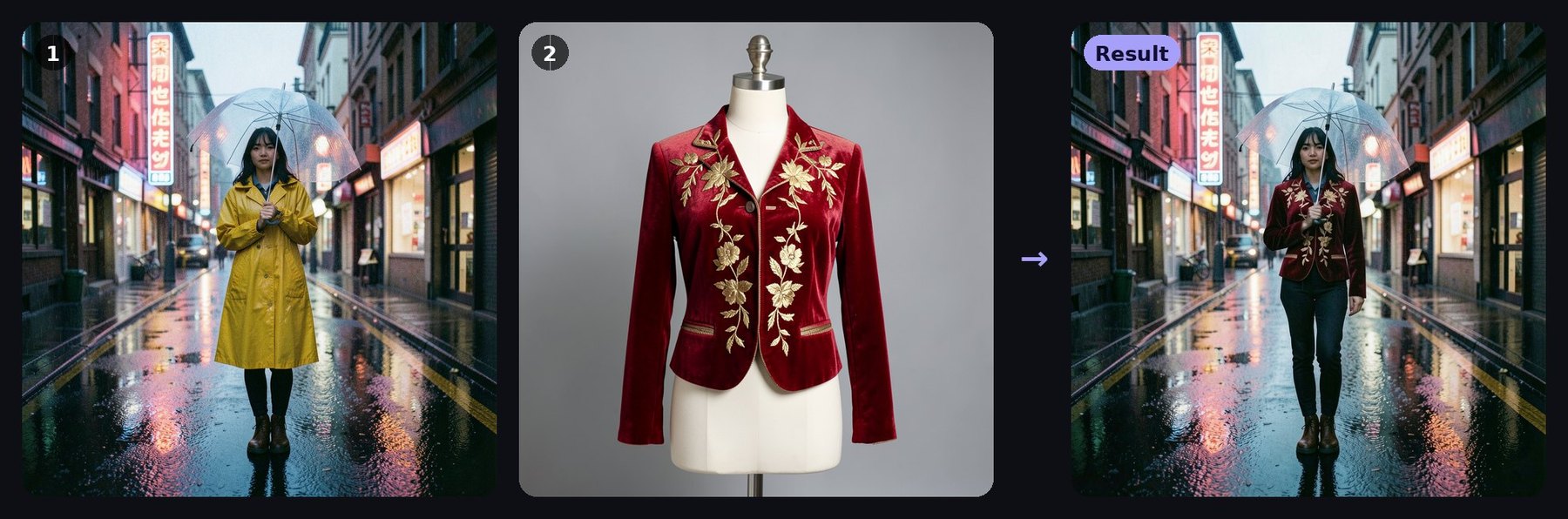
Put the jacket from image 2 on the woman in image 1, and that's what you get. Her umbrella, the wet street and the neon stay where they were.
With three images you can combine an object, a material and a place in one go:

A few things that help:
- Name the numbers. "the jacket from image 2" works far better than "the jacket".
- Say what stays. "keep everything else the same" or "she still holds the umbrella" protects details you care about.
- Use clean references. A product shot on a plain background gives Klein a clearer idea of the thing than a busy scene does.
Change the shape
By default an edit keeps the shape of image 1 — the Shape chip reads Original. Pick any other ratio and Klein recomposes the scene for it instead of stretching or cropping: a square painting becomes a tall 9:16 one, with more sky added above.
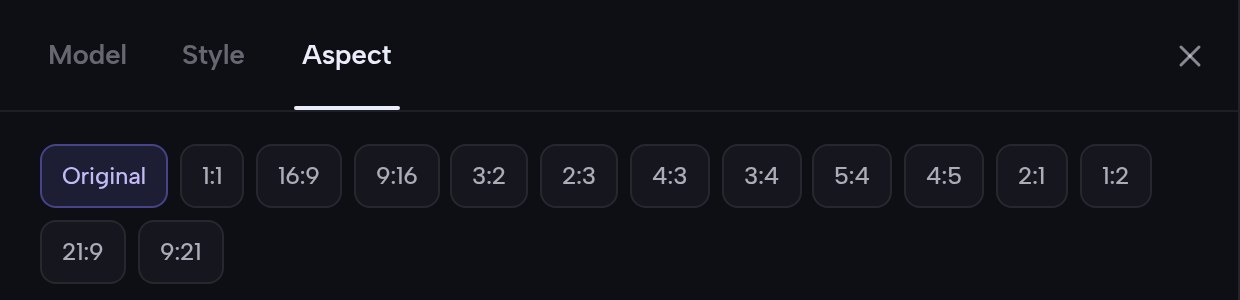
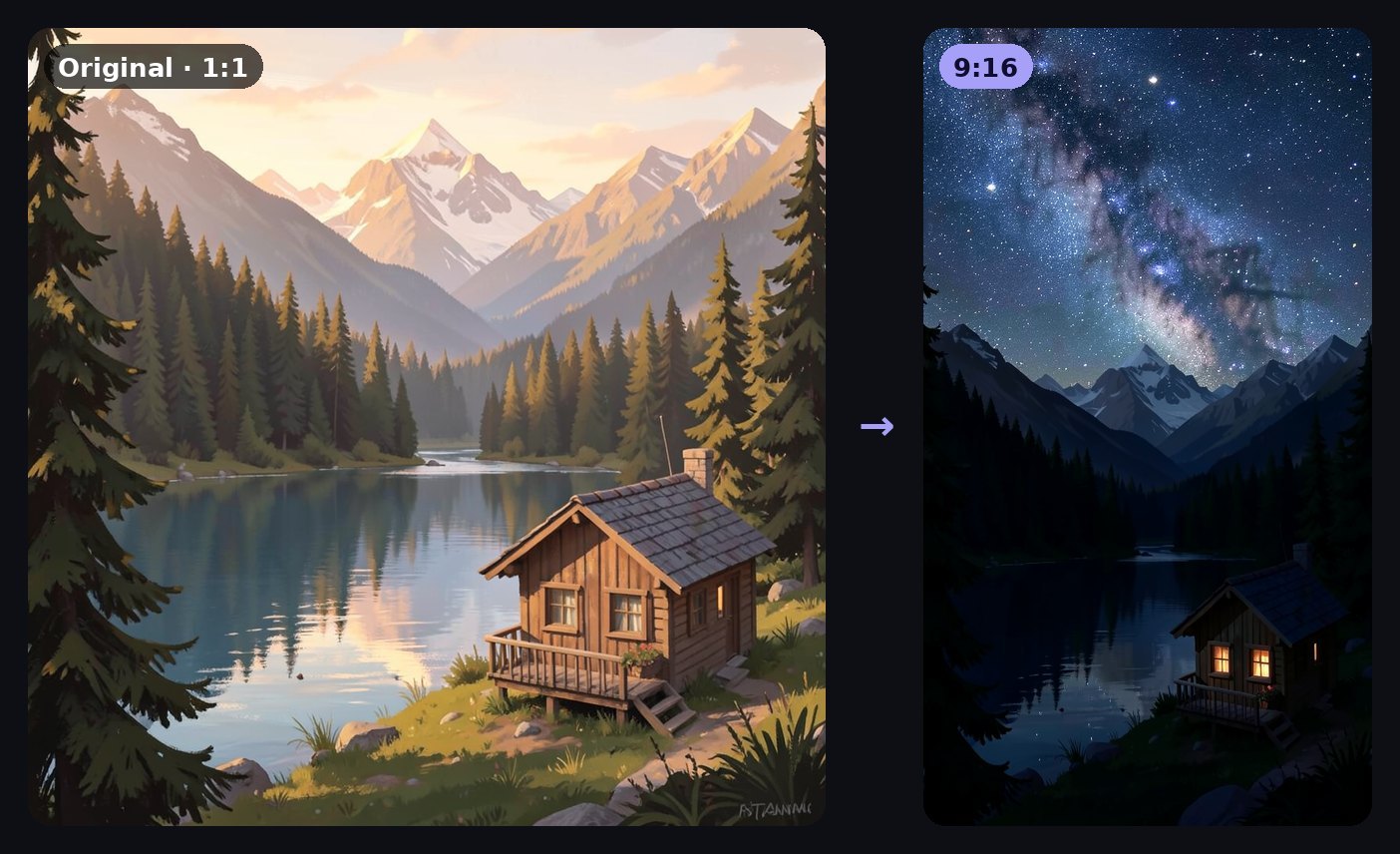
To go back, choose Original at the front of the list.
Keep going
Every edit lands in your gallery like any other creation, with its own Edit button. Small steps work better than one huge instruction: change the weather, then the outfit, then the shape, checking each result as you go.
When you only want a fresh image from text, just use Flux.2 Klein without attaching anything. It's one of the fastest models in Studio.
In short
- Who: editing is for Pro members; text-to-image with Klein is for everyone
- Cost: 1 credit per image
- Images: up to 3 — image 1 is edited, images 2 and 3 are references
- Shape: Original by default, or any ratio to recompose
- Where: the Edit button on any image, or Edit an image in the prompt bar with Flux.2 Klein selected