Getting Started with Mirrorize: Your First AI Generation in 5 Minutes
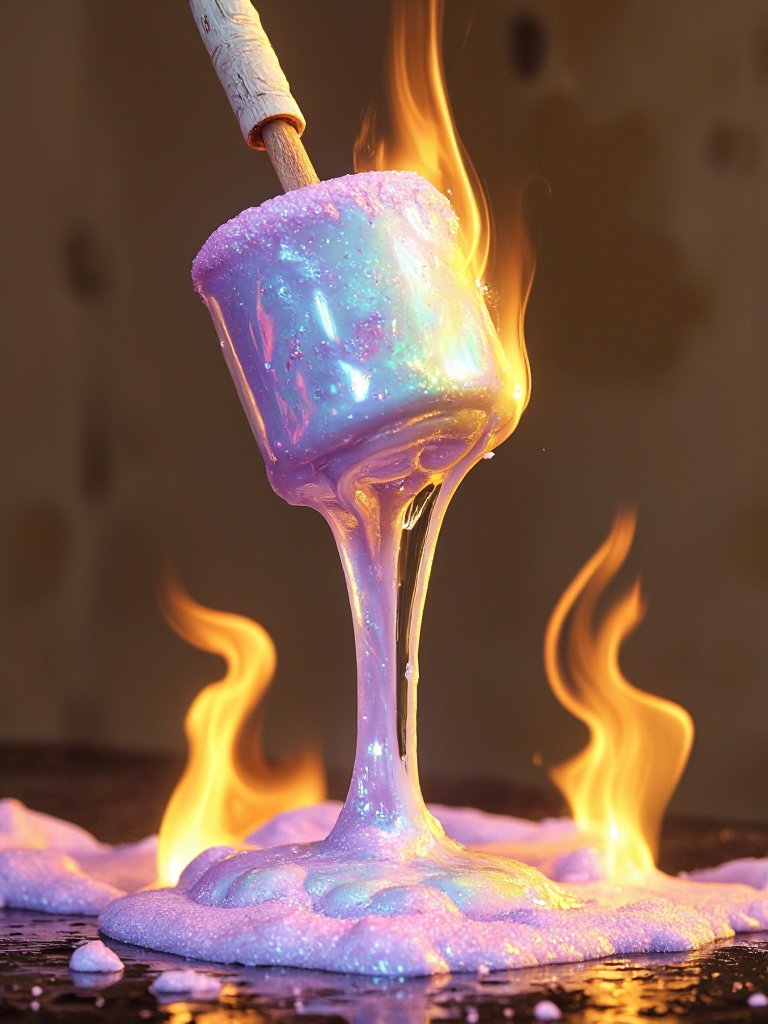
Welcome to Mirrorize
Mirrorize is an AI-powered creative platform where you can generate images using 50+ proprietary AI models, share your work with a community of creators, and explore what others are making. This guide will get you from zero to your first generation in about five minutes.
Step 1: Create Your Account
Head to mirrorize.ai and click Get Started. You can sign up with email or Google. It's free — you'll get 10 glass credits to start, which is enough for several generations.
Set up your profile: choose a username, add an avatar, and optionally customize your profile color. This color tints your entire profile page and post cards, making your content instantly recognizable in the feed.
Step 2: Open AI Studio
Click the AI Studio tab in the sidebar (the sparkle icon). This is where all generation happens. You'll see a prompt input area at the top and your gallery of past generations below.
Step 3: Choose a Model
Tap the model selector to browse available models. Each model produces a different look:
- Proximity (MV2) — Great for portraits and intimate compositions with cinematic depth
- Stellar (MV4) — Sharp, detailed, slightly futuristic aesthetic
- Zebra (MV3) — Versatile all-rounder, good for almost any subject
- Darkwhims (Illustration) — Dark fantasy illustration style
- Horizon (Anime) — Vibrant anime-style artwork
Start with Proximity or Stellar if you're not sure — they're versatile and produce consistently great results.
Step 4: Write Your Prompt
Describe what you want to see. Be specific — more detail gives the model more to work with.
Basic: "A cat sitting in a window"
Better: "A fluffy orange tabby cat sitting on a windowsill, afternoon sunlight streaming through lace curtains, dust particles floating in the light, warm tones, peaceful atmosphere"
The second prompt gives the model information about the subject, setting, lighting, and mood. Each detail steers the result closer to your vision.
Step 5: Pick a Style (Optional)
Styles modify the visual aesthetic without changing your subject. Tap the style selector to browse options organized by category.
Some great first styles to try:
- Cinematic — Movie-quality lighting and depth of field
- Ethereal — Soft, dreamy, magical atmosphere
- Film Grain — Analog photography texture
- Realism — Ultra-detailed photographic quality
You can combine up to 3 styles. For your first generation, try one or two to get a feel for how they work.
Step 6: Choose a Resolution
Pick your aspect ratio:
- 1:1 — Square, great for profile images and social posts
- 9:16 — Vertical, perfect for phone wallpapers and stories
- 16:9 — Widescreen, ideal for landscapes and desktop wallpapers
- 3:4 and 4:5 — Portrait and social media formats
Step 7: Generate
Hit the generate button and wait. Generation typically takes 10-30 seconds depending on the model. You'll see a progress indicator as the image is created.
When it's done, your new image appears in the gallery. From there you can:
- Download it at full resolution
- Remix it (reload the prompt and settings to iterate)
- Edit it with additional AI-powered modifications
- Animate it into a short video
- Post it to the Mirrorize feed
Step 8: Share to the Feed
Created something you're proud of? Tap the share icon on any generation to post it to the Mirrorize feed. Your AI art will be visible to the entire community, and other creators can see what model and styles you used (unless you enable private generations in settings).
Engaging with the feed is how you build an audience on Mirrorize. Like other creators' work, reply to posts, and participate in the daily challenges posted in announcements.
Understanding Glass Credits
Glass is Mirrorize's creative currency. Different models cost different amounts:
- MV Series, Illustration, and Anime models — Free for Pro subscribers, 1-3 glass for free users
- Commercial models — 2-10 glass per generation for all users
- Premium models — Require a one-time pack purchase to unlock
You earn glass through daily login bonuses, and can purchase more in the Shop. Pro Unlimited subscribers get unlimited generations on all MV, Illustration, and Anime models plus 400 monthly glass for commercial models.
What's Next?
Now that you've made your first generation, here are some paths to explore:
- Try different models — Same prompt, different model = completely different results
- Experiment with style stacking — Combine 2-3 styles for unique aesthetics
- Use the Remix feature — Iterate on a generation by tweaking the prompt or swapping styles
- Check out Director Mode — Turn an image into a multi-scene video
- Chat with Qi — Our AI assistant can help with creative direction and prompt suggestions
- Join a daily challenge — Posted in announcements, these are a great way to push your skills
Welcome to the community. We can't wait to see what you create.